Adding memory or an SSD without mistakes
Upgrading memory and SSDs
Adding memory or switching to an SSD often extends a computer's life by several years, for a fraction of the price of a new machine. You still need the right part. Here is how to recognise it.
Updated on 4 November 2026


Not sure which model to choose? Contact us for advice or a quote
The essentials
Check first
The computer's spec sheet gives the memory type, the maximum amount and the disk formats.
The memory
DDR4 and DDR5 are not interchangeable. SO-DIMM for a laptop, DIMM for a desktop.
The SSD
An M.2 NVMe SSD on a recent computer, a 2.5-inch SATA SSD in place of a hard drive.
Upgrade or replace
Before buying, find what is really slowing things down. In Windows Task Manager, the Performance tab shows whether the disk, the memory or the processor maxes out during work. An SSD or more memory will not make a processor faster. A slow start-up on the original hard drive is most often solved by an SSD, the clearest gain for the smallest budget. Slowdowns as soon as several programs are open call for more memory instead, if it is not soldered and the computer is not at its maximum. A faulty part, screen, keyboard or battery, deserves a repair quote, whose price you know before any work, even on equipment bought elsewhere. Only a computer that cannot run Windows 11 should be replaced without hesitation, since a system without security updates exposes your data, and a refurbished one may then be enough.
Keeping a computer longer also matters for its footprint. According to Arcep, the French telecoms regulator, about 70 to 80% of a computer's carbon footprint is generated before it is first switched on. If memory or an SSD is enough, we tell you before suggesting a new machine. Let's review your computer.
First, what the computer accepts
Everything starts with the computer itself. Note its exact model number, on the label under the laptop or at the back of the case, and open its spec sheet on the manufacturer's website. It gives the memory type, the maximum amount, the number of slots and the disk formats accepted. On many thin laptops the memory is soldered to the motherboard and only the SSD can be replaced, when it is not soldered as well.
If in any doubt, send us your computer's model number through the contact form and we'll tell you which module or SSD suits it.
Choosing the memory
DDR4 and DDR5 are not interchangeable. The notch on the module is not in the same place and the voltage differs, 1.2 V for DDR4 and 1.1 V for DDR5, so a DDR5 module does not fit a DDR4 slot, and vice versa. The processor and motherboard decide, never the module. Under JEDEC standards, DDR4 goes up to 3,200 MT/s and DDR5 starts at 4,800 MT/s.
The format follows the computer. The short SO-DIMM module fits laptops, mini PCs and many all-in-ones, the long DIMM module desktop computers. Servers and some workstations take RDIMM, registered memory often with error correction (ECC), which cannot be mixed with unregistered memory.
Take the speed given in the spec sheet. A faster module works, but at the computer's speed. When the computer has two or more slots, install memory in identical pairs, so both channels work together (dual channel), which matters most when the processor also handles the display. For capacity, 16 GB suit office work, 32 GB development, photo editing and virtual machines, without exceeding the manufacturer's maximum. Our memory modules are chosen by generation and format.
Choosing the SSD
Replacing a hard drive with an SSD remains the most spectacular upgrade. Start-up, opening programs and searching for files all speed up markedly. The 2.5-inch SATA SSD, the size of laptop hard drives, replaces them without an adapter, at around 550 MB/s at most. The M.2 SSD comes in SATA, at the same speed in a stick format, and in NVMe, connected over PCI Express, several times faster and the standard on recent computers.
The M.2 format reads as two numbers, width then length in millimetres. A 2280 measures 22 mm by 80 mm, the most common size, but some compact laptops only accept 2230 or 2242. An M.2 slot does not necessarily accept both interfaces, and the spec sheet says whether it is wired for PCI Express, SATA or both. Without an M.2 slot, a 2.5-inch SATA SSD can still replace the hard drive. An SSD of a newer PCI Express generation than the computer works, at the computer's speed. See our SSDs.
Before opening the computer, back up your data, and if the disk is encrypted with BitLocker, note its recovery key. Shut down, unplug, remove the battery when it is removable, and touch a metal part of the case before handling components, to discharge static electricity.
Frequently asked questions
Does my computer have a free slot?
The manufacturer's spec sheet says so. On Windows, Task Manager also shows it, in the Performance tab, under Memory, next to Slots used.
Can I mix two different modules?
Yes if they are the same type, but they all then run at the speed of the slowest. Two identical modules remain the safest choice.
Do I need to reinstall Windows after changing the SSD?
Not necessarily. Cloning the old disk carries over Windows, programs and files as they are. A clean reinstall starts from a healthy base, provided the data was backed up first. Our data migration service moves files, profiles and settings, checked before handover.
Our other guides
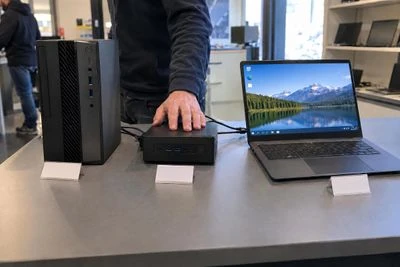
Choosing a business computer
Laptop, desktop, all-in-one or workstation. What really matters when equipping a workstation, from the processor to Windows 11 and the docking station. Read the guide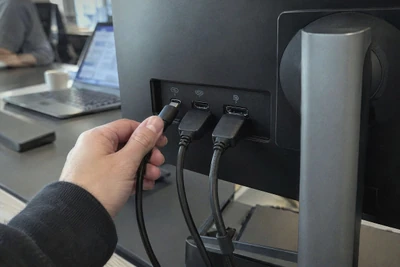
Choosing a business monitor
Size and resolution, panel type, USB-C and laptop charging, ergonomic adjustments, energy label. What to look for in a comfortable, long-lasting office monitor. Read the guide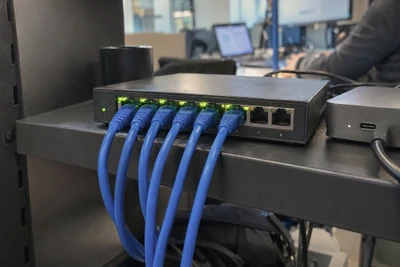
Small business network and Wi-Fi
Router, switches, Wi-Fi access points, PoE and cabling. How to build a reliable business network, from a small office to premises over several floors. Read the guide
Buying IT equipment for the public sector
Mandatory environmental criterion, share of reused and recycled equipment, EPEAT and TCO labels. What a French public buyer needs to know about IT equipment. Read the guide


Need some advice?
Tell us what you need and what you want to spend, and we'll point you to the most sensible setup, without oversizing.