Wi-Fi, PoE, cabling and management
Small business network and Wi-Fi
A business network rests on four building blocks, a gateway to the internet, switches, Wi-Fi access points and tidy cabling. Here is how to choose them and make them work together.
Updated on 4 November 2026


Not sure which model to choose? Contact us for advice or a quote
The essentials
The Wi-Fi
Size it for the number of devices and the obstacles, with several access points at moderate power.
The power
PoE+ powers recent access points and cameras over the network cable.
The management
A single console and one product family, for a network that is quicker to troubleshoot.
The four building blocks, and where the ISP box fits
The router connects the network to the operator's fibre, filters traffic, hands out addresses and keeps networks apart, and a 4G or 5G router takes over when the line goes down. Switches connect computers, printers, phones, cameras and access points, and a managed model separates uses into virtual networks (VLANs). Access points broadcast the Wi-Fi, and several managed together form a single network, where a device moves from one to the next as you walk around. Finally, cables, patch panels and a rack keep everything tidy and readable on the day of a fault.
The operator's box does a bit of everything, and quickly shows its limits beyond a few computers. Its Wi-Fi covers one or two rooms, its settings are basic and it cannot be managed with the rest of the network. Keep it for internet access, in bridge mode, or failing that forwarding everything to the router behind it (DMZ), and switch off its Wi-Fi so it does not interfere with the access points. Without this setting, two routers sit in a row (double NAT), which disrupts video calls, telephony and remote access.
Well-sized Wi-Fi
Wi-Fi is sized for the number of devices connected at the same time, computers, connected objects and phones included, staff and visitors' own phones too, and for obstacles, more than for floor area. A load-bearing wall, a glass partition or a metal cabinet weaken the signal far more than an open-plan floor. Several access points at moderate power beat a single one turned up to the maximum. Mounted on the ceiling, in the middle of the areas to cover, each serves its own zone without getting in the others' way.
Wi-Fi 6 (802.11ax) is enough for most offices. Wi-Fi 6E adds the much less crowded 6 GHz band, open in France from 5,945 to 6,425 MHz indoors. Wi-Fi 7 (802.11be) raises throughput further and mostly serves very busy places, provided computers and phones support it. For visitors, create a separate guest network, isolated from computers and servers, with its own password.
Switches, PoE and cabling
PoE (Power over Ethernet) carries power over the network cable, so an access point, a camera or an IP phone can go where there is no socket. PoE (802.3af) delivers up to 15.4 W per port, enough for a phone or a small access point. PoE+ (802.3at) goes up to 30 W, the usual case for recent access points and cameras, and PoE++ (802.3bt) goes further for the most power-hungry devices.
Add up the consumption of everything the switch will power and compare it with its total PoE budget, often lower than the sum of its ports. For just one or two devices, a PoE injector saves changing the switch. Beware of passive PoE, 24 V for example, which sends its voltage without negotiating and can damage a device that does not expect it. Finally, plan 2.5 Gb/s ports for Wi-Fi 6E and 7 access points, and SFP ports to link floors or buildings over fibre with SFP modules.
A copper Ethernet link runs 100 m at most between the switch and the device. Category 6 is enough for gigabit and 2.5 Gb/s, 6A carries 10 Gb/s over the full length. A 19-inch rack with a patch panel keeps everything tidy, labelled and ventilated, its height counted in units (U) of 44.45 mm. Add a UPS so the network rides through a power blip, and cables of the right category down to the last patch lead.
Managing and installing
A business network is best run from a single console, which sees every device, applies updates and warns you of faults. That is the approach of Ubiquiti's UniFi range, whose catalogue brings together access points, switches, gateways and injectors, and whose software runs on a UniFi gateway or on a server. Stay within one product family as far as possible, a uniform network is configured as a whole and troubleshot faster.
Our business network and Wi-Fi service starts with an audit of what is in place, and the quote says what is kept and what is replaced, with equipment itemised separately. We size, install and commission, in Cisco, Ubiquiti or Aruba as needed, with Wi-Fi coverage checked by mapping. Managed IT services then monitor the network day to day, apply updates and keep a backup of its settings.
Frequently asked questions
How many access points for my premises?
An open-plan floor is covered with few access points, partitioned offices or several floors need more. The safest approach is an on-site survey, which we carry out with our network service.
How long does the installation take?
For a small network, allow 1 to 2 days on site in general, outside your opening hours if the business cannot stop.
Do I need a subscription to manage a UniFi network?
No. The UniFi Network software comes without a per-device licence. Only some optional Ubiquiti services are paid.
Our other guides
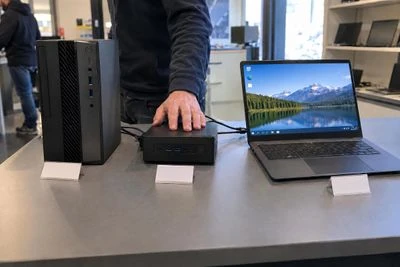
Choosing a business computer
Laptop, desktop, all-in-one or workstation. What really matters when equipping a workstation, from the processor to Windows 11 and the docking station. Read the guide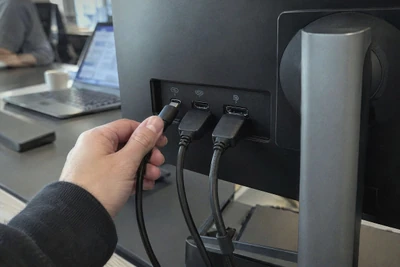
Choosing a business monitor
Size and resolution, panel type, USB-C and laptop charging, ergonomic adjustments, energy label. What to look for in a comfortable, long-lasting office monitor. Read the guide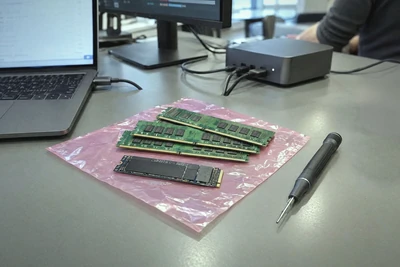
Upgrading memory and SSDs
DDR4 or DDR5, SO-DIMM or DIMM, SATA or NVMe, M.2 2280. How to choose the memory and SSD that give a computer a new lease of life, without mistakes. Read the guide
Buying IT equipment for the public sector
Mandatory environmental criterion, share of reused and recycled equipment, EPEAT and TCO labels. What a French public buyer needs to know about IT equipment. Read the guide


Need some advice?
Tell us what you need and what you want to spend, and we'll point you to the most sensible setup, without oversizing.